
context-first ai
ai roi
artificial intelligence
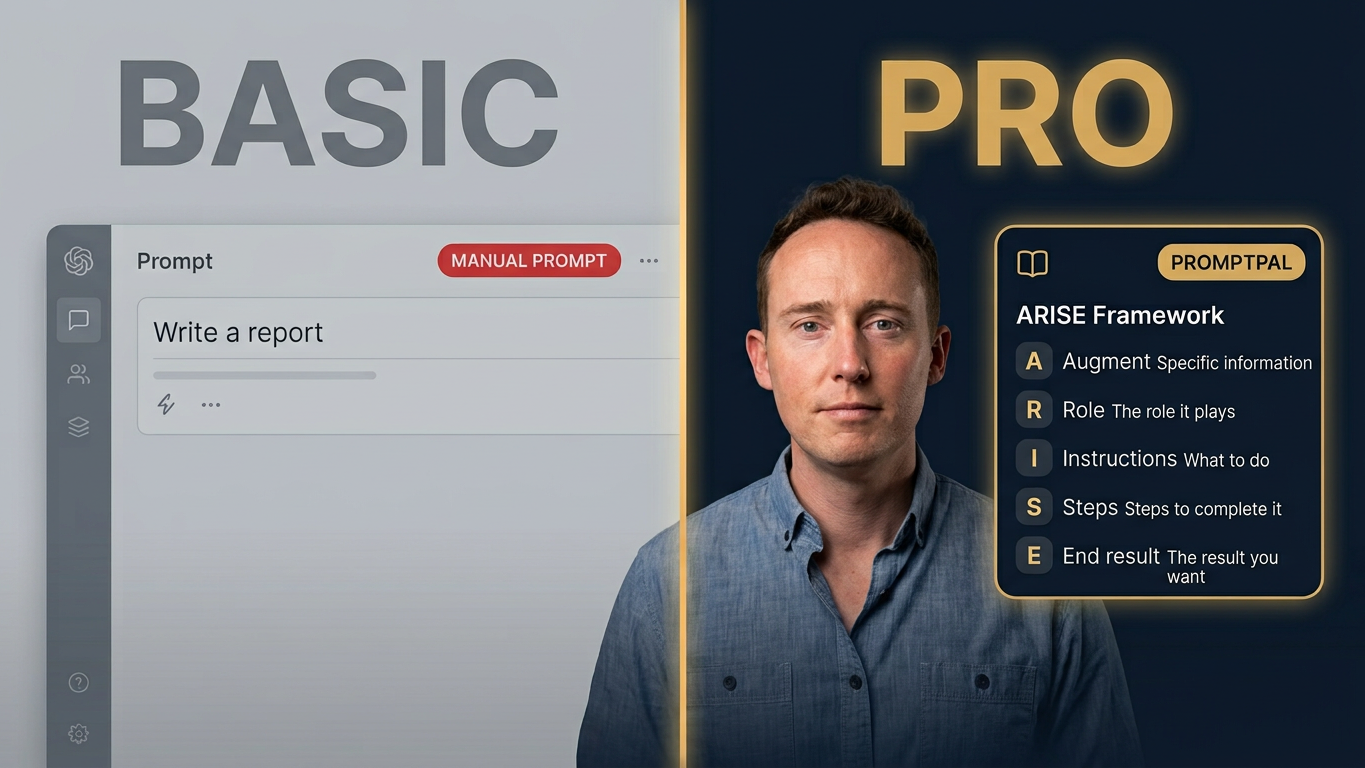

Watch Darragh Grove-White use PromptPal to build a structured research prompt, then run it in a fresh ChatGPT Deep Research chat. This 9-minute walkthrough includes chapter links, a written guide, an example, and answers to common questions.
Video: ChatGPT Deep Research: Build Your Prompt with PromptPal
Presenter: Darragh Grove-White
Duration: 9 minutes, 6 seconds · Video published: 11 October 2026
Get PromptPal · Jump to video chapters · Read the FAQ · Read the transcript
A vague request leaves the AI to fill in the gaps: who the work is for, which sources matter, what must stay out, and what a useful answer should look like. You can spend the next ten messages correcting those assumptions. PromptPal gives you a place to work through the brief before asking another tool to do the task.
The demonstration follows a research question through that process. It also covers follow-up prompts, source documents, visual learning aids, using the instructions in other AI tools, and choosing a model for the work. The written guide below supports the video; it is not a verbatim transcript.
Start with a real task. Name the audience, the decision or deliverable, and the information you already have. “Help me research this topic for a customer briefing” gives PromptPal a starting point. Add the scope, deadline, and source requirements when you know them. Avoid asking for a comprehensive answer to an undefined problem.
Use the questions to make the brief more precise. Specify what the reader already knows, what the output must include, and which assumptions need checking. If you do not know something, say so. An explicit gap is easier to handle than an invented fact buried inside a confident answer.
Read the instructions before copying them. Check that the task still matches your intent and that the scope is manageable. Look for requirements you never asked for, missing constraints, or a proposed output that would be difficult to review. Correct these here, before the research starts.
In the video, the next step is a fresh ChatGPT chat with Deep Research selected. Paste the reviewed prompt into that chat. A new conversation gives this task a clear starting point, but it also means the relevant context needs to be supplied again. Choose a research tool when the task needs research; a short drafting task may only need a standard chat.
Copying instructions does not carry the files across. Reattach the documents needed for the task and make clear which ones are authoritative. Check that the destination tool can read them. Include only material you are permitted to use in that tool, and remove information that is irrelevant to the job.
Review the output for accuracy, source support, omissions, and usefulness. A polished research report still needs checking. Open the cited sources, distinguish evidence from inference, and identify what remains unresolved. If you ask a follow-up question, name the specific gap instead of requesting a generally “better” answer.
The video introduces ARISE as a way to organise the instructions. It gives you five things to check before running a prompt:
Use the structure to expose missing context. A long prompt with an unclear task still creates review work. Before running it, you should be able to explain what the tool will produce, what evidence it will use, and who will decide whether the result is acceptable.
You do not need to begin with a large research project. Try this brief for a customer email, replacing the bracketed placeholders and attaching the source note:
Draft a 150-word email for our customers explaining [the change]. Use only the facts in [the attached note]. Keep the tone calm and direct. Explain what happens next and what the customer needs to do. Ask about missing facts before drafting.
Use PromptPal to clarify that brief, then review the resulting instructions. When you run the prompt, check the draft against the note: are the dates correct, is the action clear, and has the AI added a promise you did not authorise? That review is part of the workflow. It is where you decide whether the output is ready to use.
Select a chapter to cue the video above at that moment, then press Play. You can also watch on YouTube.
PromptPal is a custom GPT created by Darragh Grove-White. It helps turn a task into structured instructions by asking for context, clarifying the request, and defining the output. You review the resulting prompt before using it.
In this demo, PromptPal prepares the research prompt. Darragh then copies it into a fresh ChatGPT chat and selects Deep Research there. Preparing the instructions and running the research are separate steps.
No. The demo uses Deep Research for a research task. A short email, an outline, or a rewrite may only need a standard chat. Choose the tool according to the work and the capabilities available in your account.
Yes, the demo covers using the generated instructions in other AI tools, including Claude and Gemini. Check that the chosen tool supports the files, research features, and output you need; the same instructions may need adjustment.
No. Copying the prompt text does not transfer the source files. Attach the relevant documents again in the destination chat, check that the tool can read them, and identify which material it should use.
Use the Get PromptPal page linked below to request access. Start with one specific task, answer the clarifying questions, and review the completed instructions before running them.
The transcript below follows the video's English (Canada) subtitles, with line breaks grouped into chapters for reading.
Hey friends. Today I'm going to show you how to use PromptPal. That's the tool that I made for myself that you should have access to because you took the workshop. Just a recap, PromptPal is the special GPT that I built so that I could create a comprehensive, highly detailed RISE prompts that give almost anybody the benefit of prompt engineering expertise without actually having to become a prompt engineer or have to pay one. So next, I'm going to show you how to use it.
So, as a quick reminder, PromptPal does RISE and ARISE prompts. So, if you remember from the workshop, A stands for augment, so it's giving it a bunch of information specific. And then RISE being the role, the instructions, the steps to complete the task and then the end result that I want.
So in this example, what I'm going to do is I'm going to ask for a deep research prompt. So the prompt is going to be something like this. I need you to create a deep research prompt for me that will rigorously study the SEO, AEO, answer engine optimization, and the GEO, generative engine optimization, research that is being observed over the last 24 months and how it's affecting website traffic and what businesses need to do about it in order to show up favourably in AI results. Now, before you create the prompt for me, I want you to ask me five high-signal questions. Of course you wait to answer those questions because remember, the more context it can pull out of you, the better the output's going to end up being.
And so here, it's asking me a few quick questions. I'm going to answer these quickly here. For one, it will be for business owners, local businesses, CEOs and business leaders. And yes, the finished search could primarily inform strategy, budget allocation, website redesign, content strategy and everything that you're suggesting. Number two, which AI search ecosystem should be in scope? I want definitely Google Search and Gemini, ChatGPT, Perplexity, Gemini, definitely Microsoft Copilot and I would like Claude as well. I would also need this to examine Meta AI, Apple, YouTube, Reddit, Amazon, etc. Number three, how rigorous should the evidence be? Very rigorous. Number four, business website segments, you choose or use your best judgment. And then number five, I want all of the above. So, now I'm going to hit Send.
Okay, so it took a couple minutes there. And it is now printing it out for me. So, remember R. So it's saying you are a senior search strategist, a digital economist, a technical SEO researcher and an AI discovery analyst. And it goes pretty thoroughly into everything. Here's the steps to complete. Looks like seven. And then the end result. So an executive summary, and a whole bunch of other useful stuff that I'm interested in.
So what I'm going to do is I copy this out of PromptPal after I've made it, and then I go to a fresh chat. I paste that in. I hit deep research and I let it rip. You have to remember that you need to leave PromptPal. And just a reminder when you're doing deep research. It'll usually show you the overview and there'll be a countdown, but otherwise, just remember to hit start. And then it'll check potentially up to several hundred websites for you on whatever it is you're interested in getting research done on.
Now, the other cool thing about PromptPal is it also has a thing called Chained Next Step. So, I could then, after the deep research is done, I could copy and paste this in as a follow-up prompt, so that the research is even more thorough.
Now, you can use PromptPal for much more than just deep research, you can, for instance, upload documents to PromptPal and then ask it to create a prompt that can work with those documents. But remember, after it creates the engineered prompt for you in PromptPal, you need to copy and paste it and then move it to a new chat. And if you're uploading media like PDFs or images or anything like that, you still have to upload that to the fresh chat with your new prompt as well. So, I probably use PromptPal multiple times a day. I especially use it for things that are higher stakes that are more expensive to be wrong with. So it helps to kind of reduce risk on certain tasks. I wouldn't use PromptPal with everything, but I would use it for the things that are important to my work. Obviously, I use it with client work as well.
One thing I like to do after I've got a deep research report is turn it into a visual because I'm a visual learner. So here's a prompt of what I would say, something like this. I'm a visual learner and I'd like you to create a visual learning aid memory graphic that helps me to digest the key findings and help contextualize how it all fits together rather than digesting random facts and percentages. Show me how it all fits together and why I should care. So I go like that and then I go create an image. I'll turn on... Sure, that looks good. And let's see what happens. Okay, so here we go. Here's what it did for me. From search to customers. SEO: be found. AEO: be understood. GEO: be used. So, here's how that all fits together based on the research that I just had ChatGPT do for the PromptPal prompt I put in. Pretty cool, right? So, this is often what I'll do after I do a deep research report if I don't have time to actually read the deep research.
Once PromptPal has built your prompt, you can use it in Gemini, Claude and ChatGPT. Then give each model the same prompt, the same context and any source files it needs and connectors or plugins. Let them answer independently first, then you can ask the model to critique the other and say which one did the better research, or who was more thorough, or what would you take from this and add to your research? So, taking the Gemini deep research result and the ChatGPT deep research result and then putting it into a Claude chat with Claude's deep research, and then asking what are the pros and cons of each of these deep research reports? And then let it spit it out and then say, now, revise the final report based on what you've noticed. So, this is a way that you can have the different models critique each other so that you ultimately get an even more useful, powerful result.
As models become more capable, you often need less rigid prompts and scaffolding. So what matters most is giving the model the relevant context, clear constraints and a good description of the end result of what you want. Prompt engineering still has value, though. It'll be especially useful when you're using smaller, more economical models because clear structure can help it do the job more reliably. So my approach would be to use the least costly model with enough capability to meet the standard I need. Test the output, check it against the standard and move it to a more capable model when the result isn't quite good enough yet.
So, first you have to get back into PromptPal. So, check the link or follow the instructions to regain access to it if you don't have it. And then once you're in here, see these three dots? Click that and then go Pin GPT. And so then what happens is now when I pin GPT, it's right up here.
Remember, first context, then action. Give AI the background it needs, describe the result you want and use your own judgment to check what comes back. Now try PromptPal on one real task. If this video helped, hit like and subscribe for more practical ways to use AI for your work. Let me know in the comments what you'd like to help with next. Thanks for watching. I'll see you next time.
Request access to PromptPal, choose a task you understand, and work through the questions. Keep the source material close enough to check the result. The useful test is whether you can explain what the AI was asked to do and verify that it did it.
For more about the approach behind the workflow, read about Darragh Grove-White and Context-First AI.